
2021-07-17
The Padlock feature provides a simple way to provide admin access to one or more mobile app features or to force mobile app users to create an account before accessing any features in the app.
Note: The Padlock feature only allows or disallows access to features selected to be controlled. It also provides a method to lock the app completely until users are authenticated. If more granular roles or permissions are required, Padlock Pro should be used instead.
When configuring some features that provide administrative functionality, you’ll want to control access so that only designated App Owners or App Admins have the ability to access or modify them. The PWA Push Sender and the MigaPrint feature used with Commerce Pro or XDelivery are examples of common use cases where this type of configuration is required.
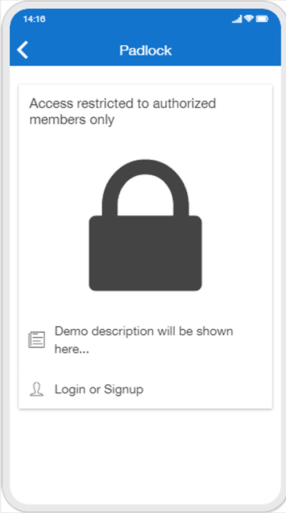
To prevent unwanted access to particular features (depending on feature implementation), here’s a common way to use the Padlock feature to hide features that should be restricted to designated admin user accounts.
Using Padlock provides a more elegant way to hide the feature from end users of the Mobile App while making it easy for the App Admin to manage business or app functionality from their own mobile device. The feature is easily accessed by Admin users but others won’t know the feature is there unless granted access by the App Admin.
** Be sure to enable the App Admin(s) to access features hidden by the Padlock. **
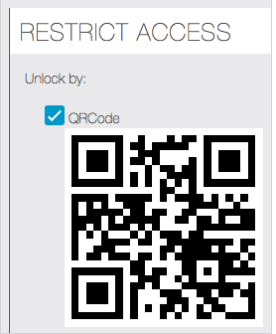
The images below show the 2 screens required for using the Padlock to hide features. Add the features you wish to hide behind the lock for Admin users, then, if required, create the Admin access for hidden features to a new or existing App user account.
The “Restrict Access” page contains a list of the app features in the app and the options to control access.

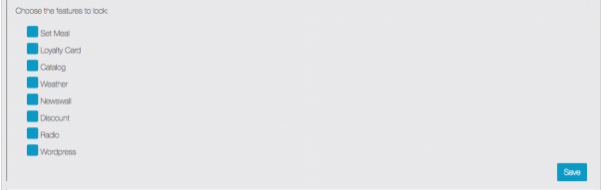
From the Editor > Users > Create a new user or edit an existing user to allow user to access locked pages
