2020-03-27
This article details the process of implementing the Places Feature.
The Places feature is a great way to display relevant points of interest or businesses within your app, drawing attention to hot spots in the area. Users can easily view nearby locations, access business contact info, get directions, and more!
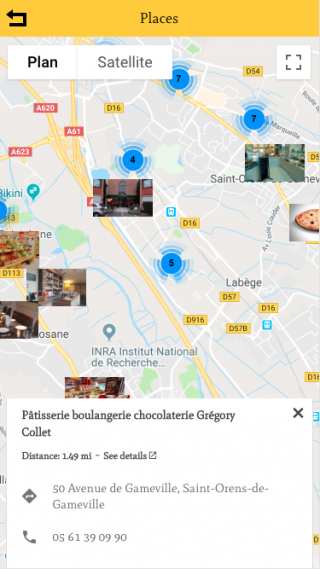
It will display all the places on a map. Additionally, if the user opens the page of a particular location, they will see the path and directions to this location, by walking or driving.
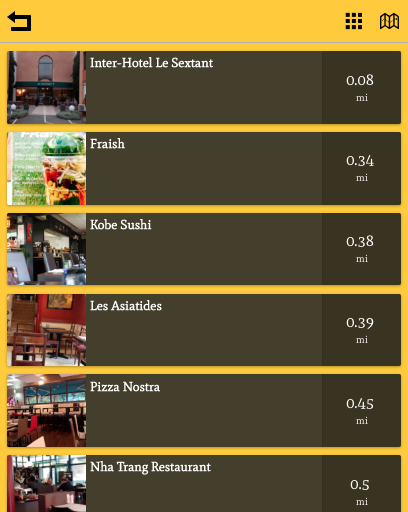
The listings of the locations are sorted based on the distance between locations and the user, from closest to furthest away.

Click on on the “Add Pages” section to add the feature to your app:
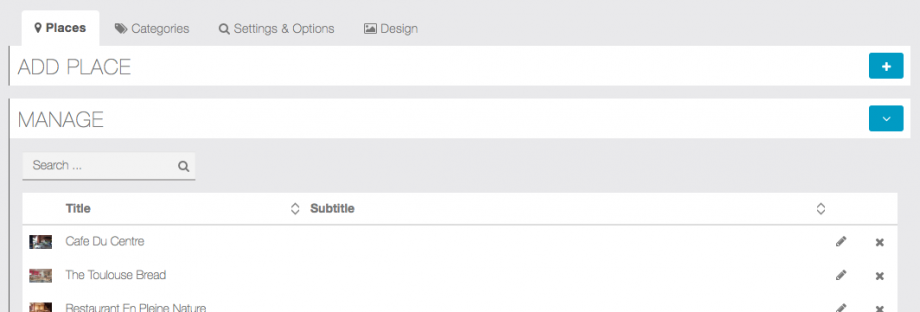
Click on

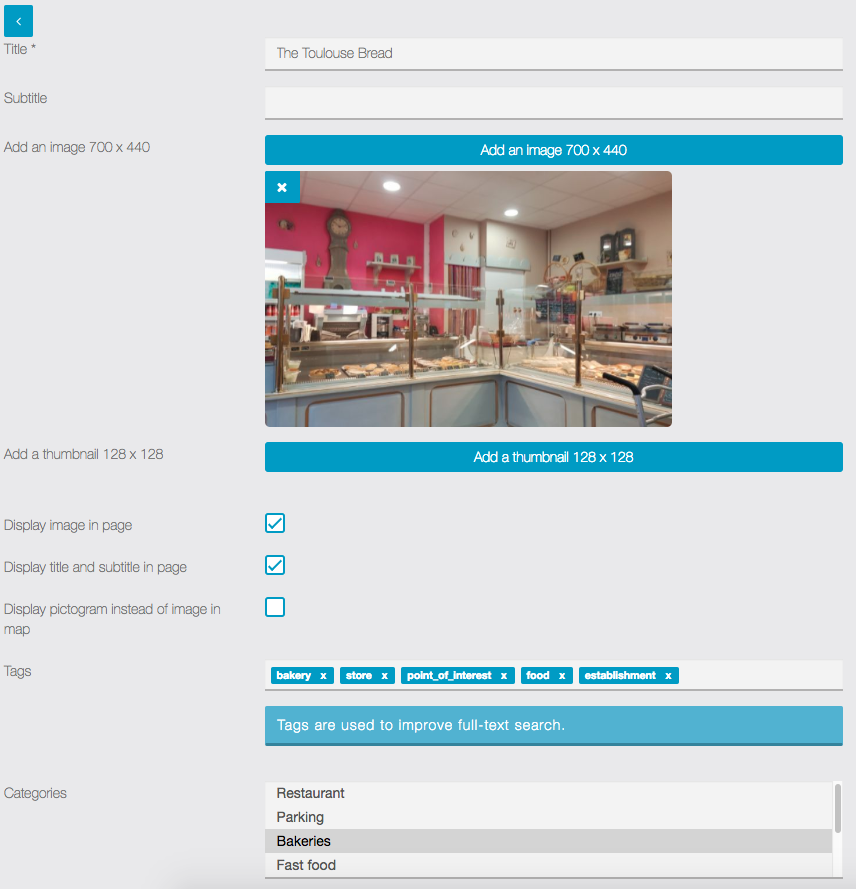
Enter an address for this location and/or its coordinates (The Google autocomplete should help) * This is information is required.
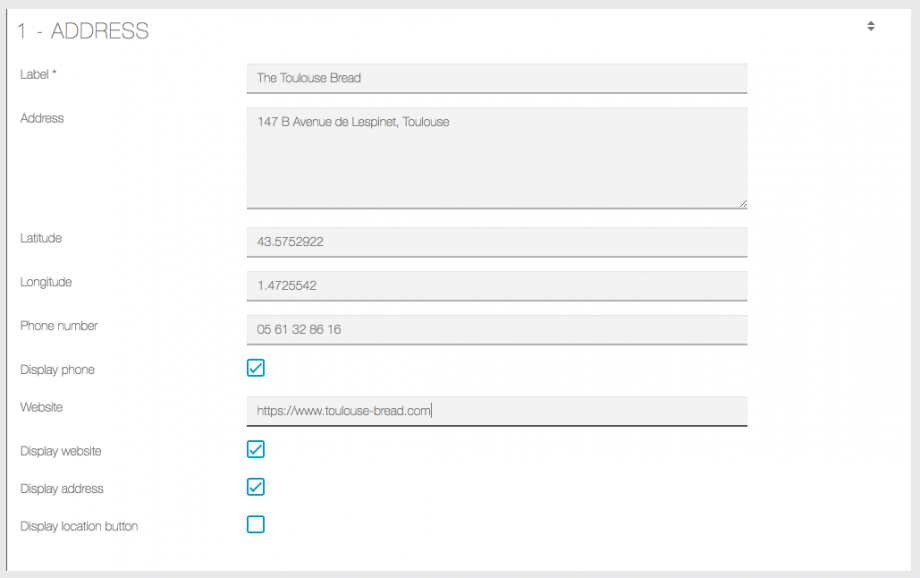
If you check the “Display address” checkbox, the address will be shown in the sheet of the location.
If you check the “display location button” checkbox, it will display a button that will allow the user to see the path to this location.
Be sure you have your Google Maps API Keys set.
You can also add other sections (see Custom Page feature for more information).

When you are done, click on to add the place.
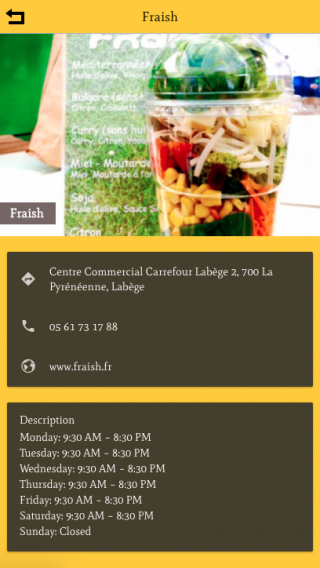
Once you have set up the list, it could look like that:
Place view / Map with Cluster & Information
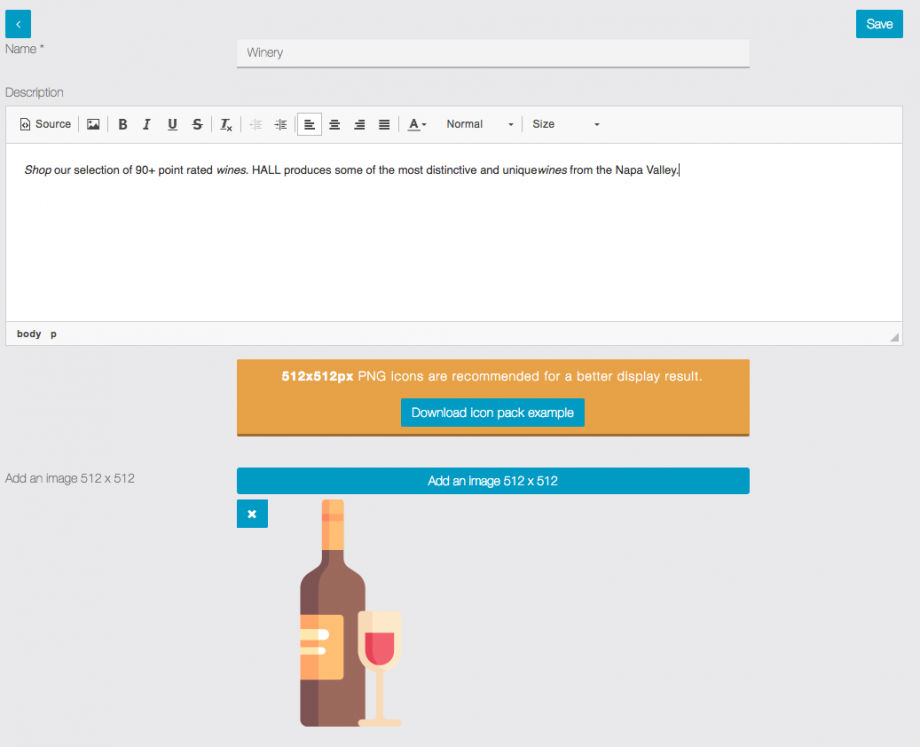
Categories are used to optimize search & organization within Places
Places may be assigned to one or more category.
We recommend using transparent PNG icons (512x512px) for better display results.
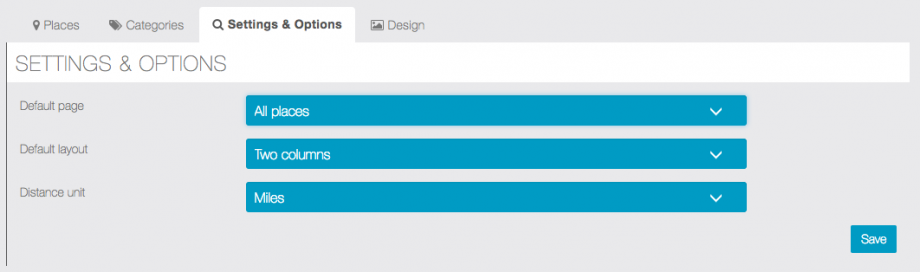
In the settings tab you’ll find 3 options