2021-12-27
The SmartAds feature enables apps to display targeted, full screen Ads to Mobile App users based on time of the day, day of the week, mobile operating system and App version. Use this feature to notify app users of new features, promotions, request reviews, referrals, participation in surveys, contests and more. Even use it to roll out software updates to the App and get users to the latest version that they might not be aware of.
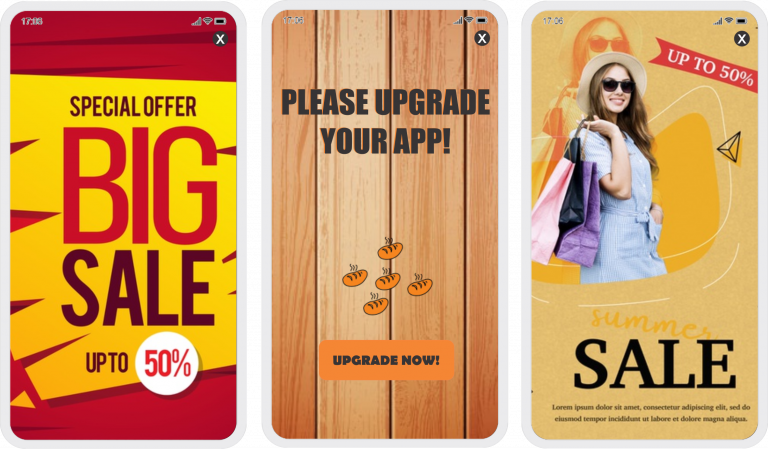
Here are a few examples of the types of Smart Ads that can be displayed in the app. Internal & External links can be placed in the ad to take the user where you want them to go. Whether it’s to the app store to get the latest update, to an internal app page, or to an external URL, we offer flexibility to use the “Ads” for many use cases from updates, to promotional offers, to announcing new features, and much more.
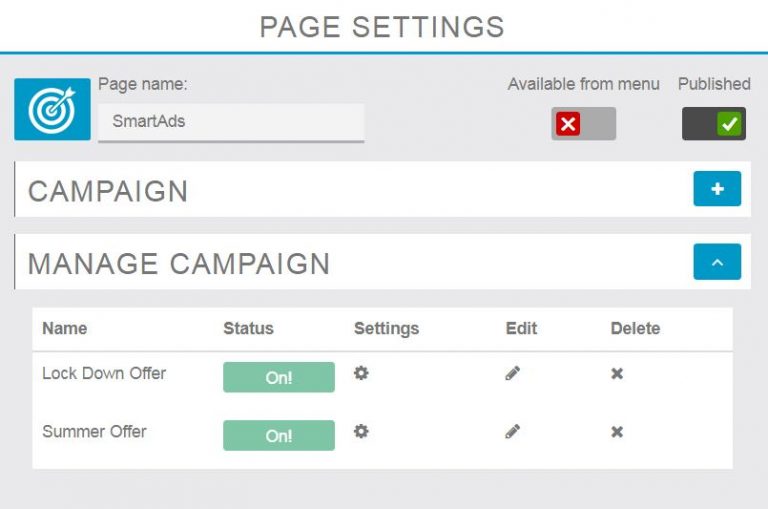
The SmartAds Feature requires only a few steps to configure.
First. toggle off “Available from Menu” so that the feature doesn’t display in the App menu.

Attention: Turn OFF all campaigns before sending the App for approval to the Apple and Google Play stores. Leaving campaigns on may cause the App to be rejected. (Once app is approved, turn on the feature and it will be ready for use)
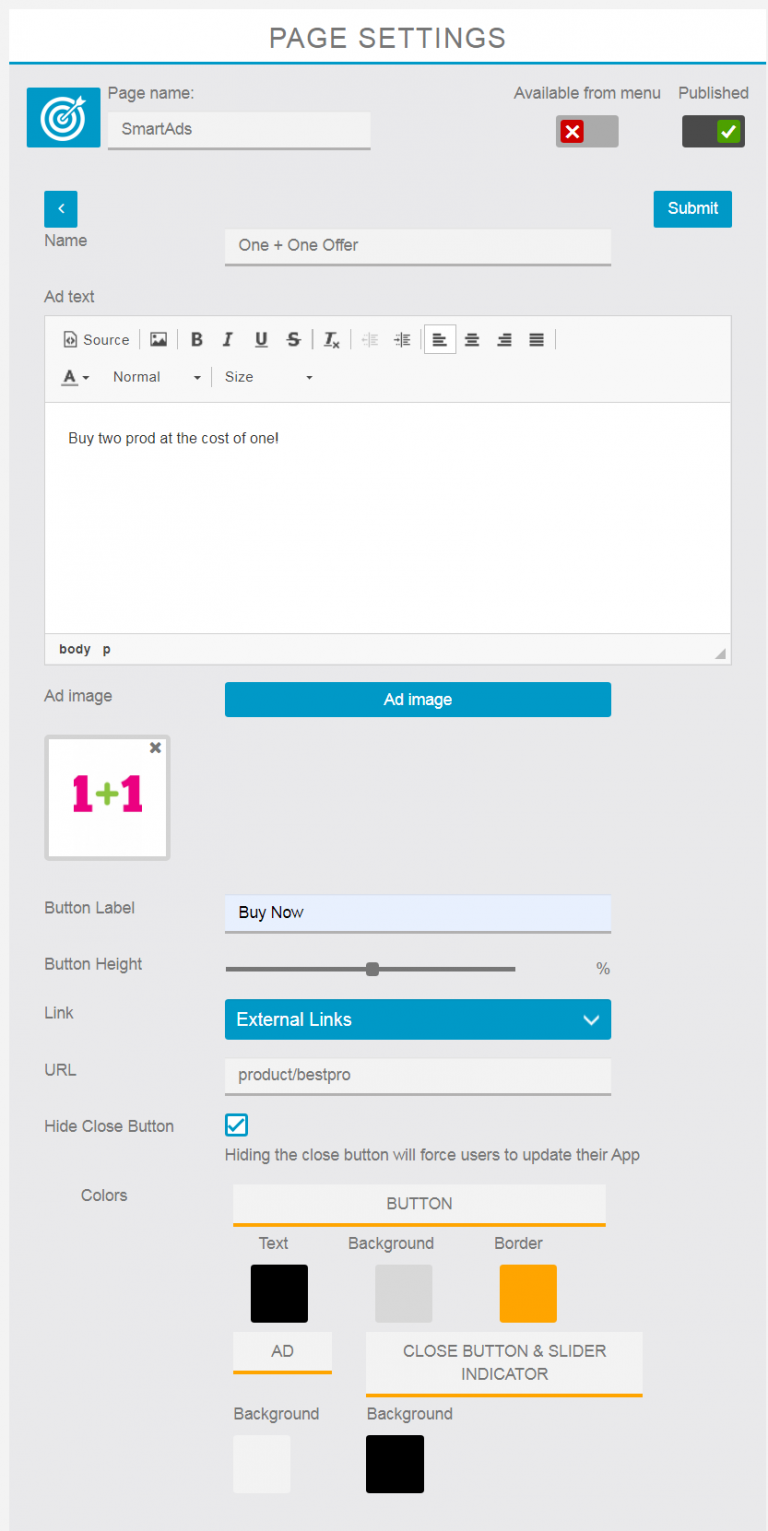
Currently, two types of ads are supported: Text and Image
Begin by naming the campaign, this is just an internal reference and will not be shown to users.
If choosing to create a text ad, fill in the text in the text box and select the background color of the Ad.
Next, to make this Ad clickable, add a URL and a label for the button – it can be “UPGRADE NOW!” or “click here” or anything that is appropriate for the campaign. If no label is defined, the Ad will still be clickable but no label will be displayed.
Define the colors & placement height for the button on the Ad using the settings below.
When creating an image based Ad, don’t fill out the ad text box or select a background color. Simply upload the image and add a URL to make it clickable, if desired.
The button can be created either in the Ad image or by filling out the settings for the button to be added as demonstrated in the text Ad example above.
If the Ad campaign is designed to force users to upgrade the App on the Google and Apple store, select Hide Close Button option. This disables the close button and forces app users to click the upgrade button rather than use the app.
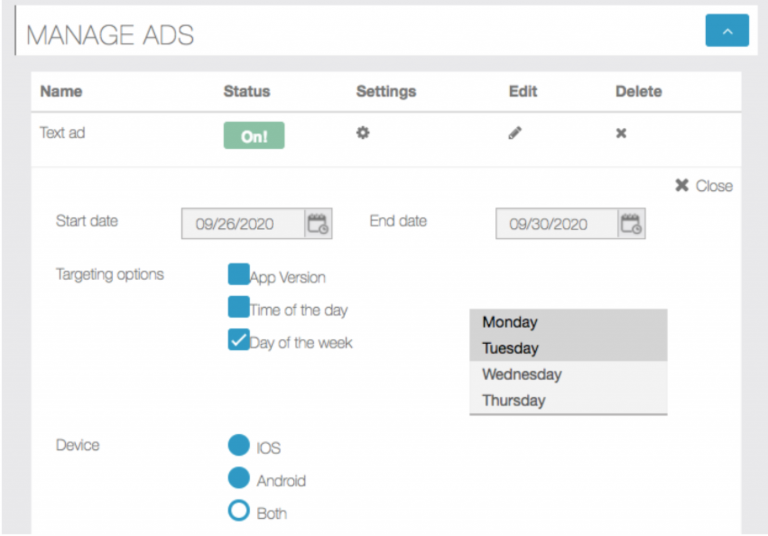
The final configuration step of the campaign is to define the targeting criteria. This step is mandatory.
If not completed, the campaign will not be displayed to any app users.
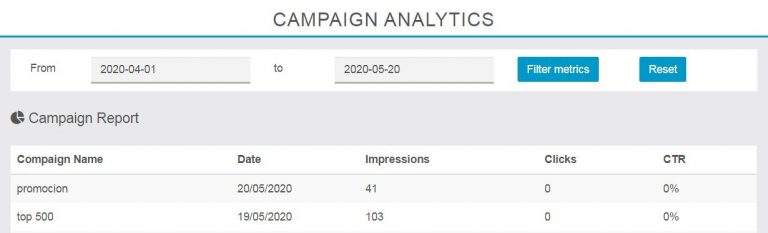
Beginning in version 1.3, the SmartAds feature introduced campaign statistics, enabling app owners to view engagement data related to the number of impressions and clicks made on each campaign.
This report is accessible from the main menu under Modules > Campaign Analytics.